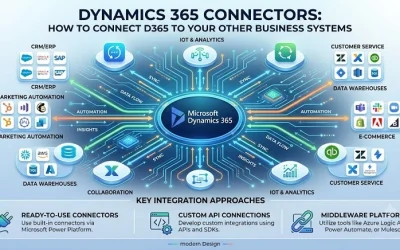
Dynamics 2016 update for Dynamics 365 Online brought along with the possibility of Server to Server Authentication for both Single-Tenant and Multi-Tenant scenario
Single-Tenant would be used in situation where the Application and the Dynamics are part of same Azure AD tenant. Here, the User accessing the application belongs to the same Azure AD or Tenant. In case of multi-tenant, the user belonging to a different Azure AD tenant will be able to use the application.
We’d use Single-Tenant when we are building an application that will beused by the employees of that company only. However, if we want an application that would also be used by external users for e.g. customers, then we would go for Multi-Tenant.
To configure Server to Server authentication,
- We will register the application in Azure AD.
- Create and configure an Application User in Dynamics 365 Online.
- Sample code to access Dynamics 365 Online.
Software requiredRegister the application in Azure AD.
Open Azure Management Portal → Azure Active Directory → App Registrations and click on New application registration.

Provide values as below and click on Create.

Note down the Application ID of the app created and click on Settings.

Select Required Permission → Add → Select an API and select Dynamics CRM Online.

Select Access Dynamics 365 as organization users.

Click on Done to add the required permissions.
Click on Keys, give a Description to the key, specify Expiration and click on Save to generate the Key.

Note down the key value generated and save it.

Create and configure the Application User
Here we will associate the above Client ID and Key – Client Secret with a user inside Dynamics 365 Online.
Navigate to Settings → Security → Users → Switch the view to Application Users and click on New

Switch to Application User form and specify the Application ID of the application that we registered earlier. Specify Full Name and the Primary Email. The platform will automatically populate the Application ID URI and Azure AD Object ID.

Now based on the action to be performed, assign an appropriate security role to the application user.
Sample code to retrieve Dynamics 365 Online information using the Application User.
var resource = "https://[OrgName].crm.dynamics.com"; // get the OAuth 2.0 Authorization Endpoint from the App registrations string authority = "https://login.microsoftonline.com/8fe3a4bf-329a-41e5-a96a-097955938686/oauth2/authorize";
                                AuthenticationContextauthenticationContext = newAuthenticationContext(authority); AuthenticationResultauthenticationResult = null; // specify client id (application id) and client secret varclientCredentials =
                                newClientCredential("4cefc50a-0c50-432a-93e3-c6d7b4876dea", "YpetUWZ2pKcJJD1DwVttFNoPl1kWXMuwtFj3ttBp2Ss="); authenticationResult = authenticationContext.AcquireToken(resource, clientCredentials); varauthenticationToken =
                                authenticationResult.AccessToken; // use the TLS12 security protocol ServicePointManager.SecurityProtocol = SecurityProtocolType.Tls12; // Get Dynamics 365 Online Data var client = newHttpClient(); client.DefaultRequestHeaders.Authorization
                                = newAuthenticationHeaderValue("Bearer", authenticationToken); // Get the subject \ topic for all the leads inside Dynamics 365 Online var result =
                                client.GetAsync("https://[OrgName].crm.dynamics.com/api/data/v9.0/leads?$select=subject").Result; if(result.IsSuccessStatusCode) { // get the lead details }
In this article we saw, how we can quickly setup the Azure AD Application and the Application User to access Dynamics 365 Online. The benefits of using Application User is that we aren’t sharing password here and also the Application User doesn’t consume the non-interactive user account license although the user is created as Non-Interactive. Also, there are is no limitation on number of application users that can be created.